Convert Windows 10 Pro to Enterprise LTSC 2021
Keep Your Apps, Settings & Data — No Clean Install Required
Good news: You can convert your Windows 10 Pro installation to Windows 10 IoT Enterprise LTSC 2021 without losing a single app, setting, or file. Unlike the Windows 11 to LTSC 2024 conversion (which only preserves personal files), the Windows 10 method lets you keep everything.
This guide walks you through the complete process, including the crucial post-conversion debloating steps to achieve a clean LTSC experience.
🎯 Why This Method is Better Than Windows 11
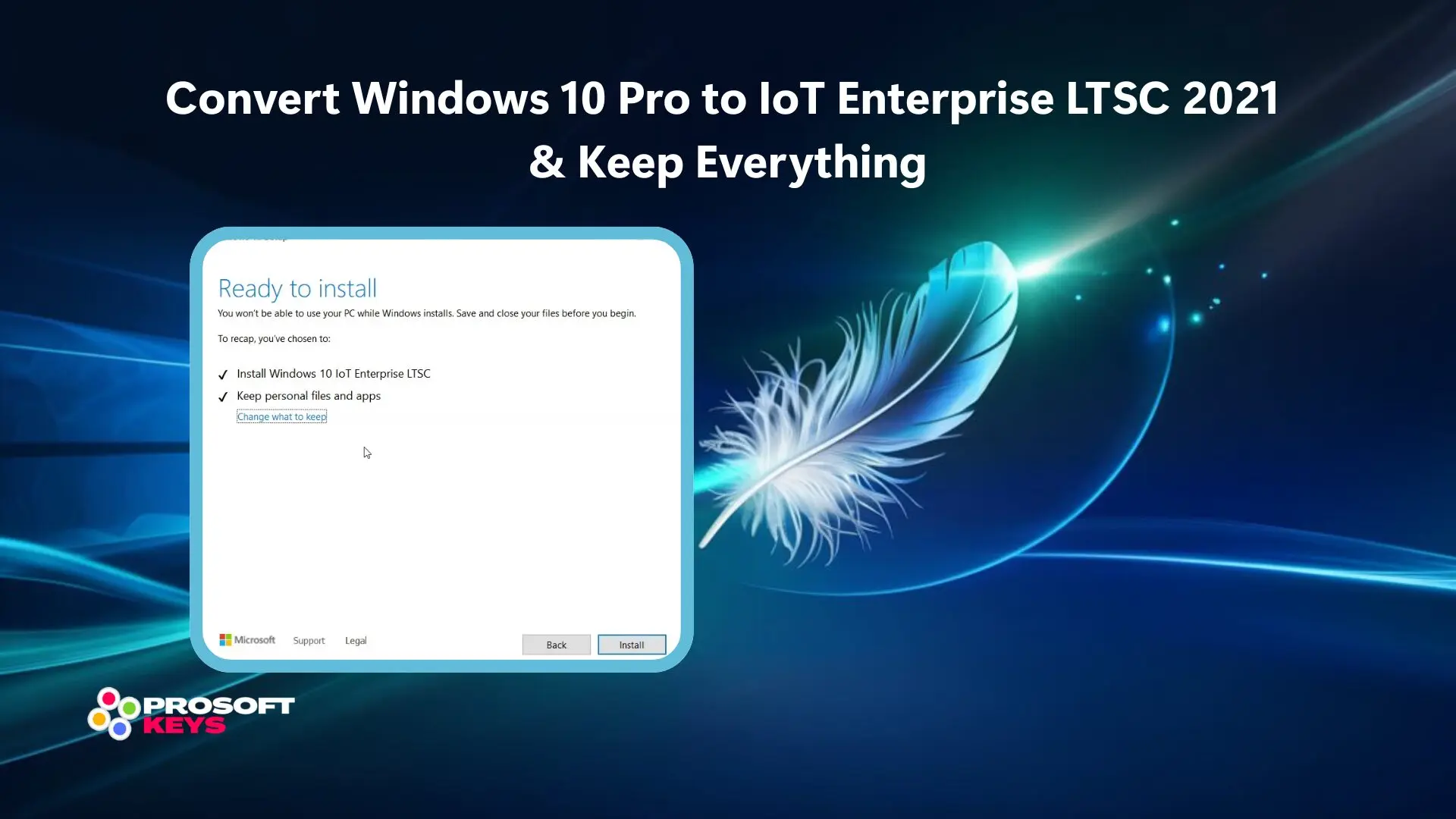
When converting Windows 10 Pro to LTSC 2021, the setup offers "Keep personal files, apps"; you preserve everything. Windows 11 to LTSC 2024 only offers "Keep personal files only" which means reinstalling all your apps.
Bottom line: Windows 10 conversion : zero app reinstallation. Windows 11 conversion = hours of setup work.
Windows 10 vs Windows 11 LTSC Conversion
| What's Preserved | Win 10 Pro → LTSC 2021 | Win 11 Pro → LTSC 2024 |
|---|---|---|
| Personal Files (Documents, Pictures, Desktop) | ✓ Yes | ✓ Yes |
| Installed Applications | ✓ Yes | ✗ No — Must Reinstall |
| Windows Settings | ✓ Yes | ✗ No — Reset to Default |
| WiFi Networks & Passwords | ✓ Yes | ✗ No — Must Reconnect |
| Bluetooth Pairings | ✓ Yes | ✗ No — Must Re-pair |
| Browser Data & Extensions | ✓ Yes | ✗ No — Only if in user folder |
| Requires Debloating After? | Yes — Bloatware remains | No — Clean slate |
Prerequisites
⚠️ Before You Begin — Required Items
- Windows 10 Pro (Activated) — Must have a valid, activated Windows 10 Pro license.
- Windows 10 IoT Enterprise LTSC 2021 ISO — Full version only. Evaluation ISOs will NOT work
- Valid LTSC 2021 Product Key — You'll need this to activate after conversion.
- Full System Backup — Critical. Use Windows backup or AOMEI Backupper to create a complete system image.
- 2+ Hours — The conversion process takes approximately 1-2 hours depending on your system.
- Stable Power — Use a UPS if on desktop, or ensure laptop is plugged in.
⚠️ Critical Warning
This method works but is not officially supported by Microsoft. Microsoft states that LTSC requires a clean install. While this in-place upgrade method works, always create a full backup before proceeding. We are not responsible for any data loss.
Step-by-Step Conversion Guide
Create a Full System Backup
Before making any changes, create a complete system image. If anything goes wrong, you can restore your entire system to its current state.
Option A: Windows Settings → Update & Security → Backup → Go to Backup and Restore → Create a system image
Option B: Use professional backup software like AOMEI Backupper Professional for more reliable imaging.
Modify the Registry (EditionID)
This step tells Windows Setup that your system is compatible with the IoT Enterprise LTSC edition.
Open Registry Editor:
- Press
Win + R, typeregedit, press Enter - Click "Yes" on the UAC prompt
Navigate to:
Modify EditionID:
- Find
EditionIDin the right panel - Double-click it
- Change the value from
ProfessionaltoIoTEnterpriseS - Click OK
💡 Why This Registry Edit?
Windows Setup checks your current edition before allowing an upgrade path. By temporarily changing EditionID to "IoTEnterpriseS", Setup sees a compatible edition and offers the in-place upgrade option with all data preserved.
Mount the LTSC 2021 ISO
Locate your Windows 10 IoT Enterprise LTSC 2021 ISO file and double-click it. Windows will mount it as a virtual DVD drive (usually D: or E:).
Open the mounted drive and run setup.exe.
Select "Keep personal files and apps"
This is the critical step that differentiates Windows 10 from Windows 11 conversion.
When Windows Setup asks what to keep, select:
✓ Keep personal files and apps
This option preserves everything : your installed programs, Windows configuration, and all personal data.
Wait for Installation
The installation process takes approximately 1-2 hours. Your computer will restart several times. Do not interrupt this process.
Let it complete fully before interacting with the system.
Activate with Your IoT LTSC 2021 Key
After installation completes and you're back at your desktop:
- Go to Settings → Update & Security → Activation
- Click "Change product key"
- Enter your Windows 10 IoT Enterprise LTSC 2021 product key
- Click "Next" and wait for activation
You should see: "Windows is activated with a digital license"
Step 7: Remove Leftover Bloatware (Critical)
🧹 Why Debloating is Necessary
Because you kept your apps and settings from Windows 10 Pro, Microsoft bloatware that wouldn't exist on a fresh LTSC install is still present. This includes Microsoft Edge, OneDrive, Microsoft Store, Xbox apps, and more.
To achieve a true LTSC experience, you need to remove these manually.
Apps You Can Remove from Settings
These apps can be uninstalled normally via Settings → Apps → Apps & features:
| Application | Removal Method |
|---|---|
| Microsoft Edge | Settings → Apps (or keep if preferred) |
| OneDrive | Settings → Apps → Uninstall |
| Cortana | Settings → Apps → Uninstall |
| Xbox Game Bar | Settings → Apps → Uninstall |
| Your Phone | Settings → Apps → Uninstall |
| Microsoft News | Settings → Apps → Uninstall |
| Weather | Settings → Apps → Uninstall |
| Microsoft Store | Requires PowerShell |
| Xbox Identity Provider | Requires PowerShell |
PowerShell Commands for Stubborn Apps
Some Microsoft apps cannot be removed through Settings and require PowerShell commands. Open PowerShell as Administrator (right-click Start → Windows PowerShell (Admin)).
Remove Microsoft Store
Get-AppxPackage *windowsstore* | Remove-AppxPackage# Remove Microsoft Store for ALL users
Get-AppxPackage -allusers *windowsstore* | Remove-AppxPackage
Remove Xbox Apps
Get-AppxPackage *xbox* | Remove-AppxPackage
Remove Cortana
Get-AppxPackage *Microsoft.549981C3F5F10* | Remove-AppxPackage
Remove Your Phone / Phone Link
Get-AppxPackage *YourPhone* | Remove-AppxPackage
Remove Windows Maps
Get-AppxPackage *windowsmaps* | Remove-AppxPackage
Remove Multiple Bloatware Apps at Once
Get-AppxPackage *3dbuilder* | Remove-AppxPackageGet-AppxPackage *windowsalarms* | Remove-AppxPackageGet-AppxPackage *windowscamera* | Remove-AppxPackageGet-AppxPackage *officehub* | Remove-AppxPackageGet-AppxPackage *skypeapp* | Remove-AppxPackageGet-AppxPackage *getstarted* | Remove-AppxPackageGet-AppxPackage *zunemusic* | Remove-AppxPackageGet-AppxPackage *zunevideo* | Remove-AppxPackageGet-AppxPackage *solitairecollection* | Remove-AppxPackageGet-AppxPackage *bingfinance* | Remove-AppxPackageGet-AppxPackage *bingnews* | Remove-AppxPackageGet-AppxPackage *bingsports* | Remove-AppxPackageGet-AppxPackage *bingweather* | Remove-AppxPackage
List All Installed Apps (To Find More Bloatware)
Get-AppxPackage | Select Name, PackageFullName
💡 Pro Tip: Automated Debloating
For a faster approach, you can use the open-source Win11Debloat or Windows10Debloater scripts from GitHub. These automate the removal of common bloatware with a single click.
What You Get After Conversion
| Feature | Windows 10 Pro | Windows 10 IoT LTSC 2021 |
|---|---|---|
| Support Duration | ~2 years per version | 10 years (until Jan 2032) |
| Feature Updates | Every 6 months (forced) | None - Security only |
| Microsoft Store | Included (can't fully remove) | Not included (clean removal possible) |
| Cortana | Included | Not included |
| Edge Browser | Force-installed | Not included |
| System Stability | Changes with each update | Consistent; no surprises |
| Ideal For | General consumers | Power users, businesses, kiosks |
Get Your LTSC 2021 License
Genuine Windows 10 IoT Enterprise LTSC 2021 keys with instant email delivery
Buy IoT LTSC 2021 Key Get Backup SoftwareFrequently Asked Questions
Can I convert Windows 10 Pro to LTSC without losing my apps?
Yes! Unlike Windows 11, converting Windows 10 Pro to IoT Enterprise LTSC 2021 allows you to keep all your installed applications, Windows settings, and personal data. This is the major advantage of the Windows 10 method.
What's the difference between Windows 10 and Windows 11 LTSC conversion?
Windows 10 Pro to LTSC 2021 conversion preserves apps, settings, AND data. Windows 11 Pro to LTSC 2024 conversion only preserves personal files. Apps and settings are reset. This makes Windows 10 conversion significantly easier with less post-conversion work.
Why do I need to debloat after converting to LTSC?
Because you're keeping your apps and settings from Windows 10 Pro, Microsoft bloatware (like Edge, OneDrive, Microsoft Store) remains installed. A fresh LTSC install wouldn't have these. Manual removal via Settings and PowerShell commands is required to achieve a clean LTSC experience.
Is the evaluation ISO good enough for conversion?
No. You must use the full Windows 10 IoT Enterprise LTSC 2021 ISO, not the evaluation version.
How long does Windows 10 IoT Enterprise LTSC 2021 receive support?
Windows 10 IoT Enterprise LTSC 2021 receives 10 years of support until January 2032. During this time, you'll receive security updates only; no feature updates that could break your system or change your workflow.
Can I reinstall Microsoft Store later if I remove it?
Yes, but it's complex. You would need to download the appx packages manually and install them via PowerShell. Most LTSC users prefer to keep it removed and install traditional desktop applications instead.
Will Windows Update still work after conversion?
Yes. Windows Update will continue to deliver security patches and critical updates. However, you won't receive feature updates : that's the whole point of LTSC. Your system stays stable and consistent.
Is this method safe?
This method works reliably when followed correctly, but it's not officially supported by Microsoft. Always create a full system backup before attempting the conversion. If something goes wrong, you can restore your backup and try again.
📚 Related Guides
📋 Disclaimer
This guide describes an undocumented method for converting Windows 10 Pro to IoT Enterprise LTSC 2021. While this method has been tested and works, Microsoft officially states that LTSC requires a clean installation. Use this method at your own risk. Always create a full system backup before proceeding. ProSoftKeys is not responsible for any data loss or system issues resulting from following this guide.
Last updated: December 2025 | Tested on: Windows 10 Pro 22H2 (ESU deployed) → Windows 10 IoT Enterprise LTSC 2021